body design: Todd Murphy00Your computer + robot phone
1 · Setup computer
A desktop or laptop with Chrome or Edge, to connect to your Pico. Keep this guide in one tab from step 02 to step 09, so the pairing scan can save your robot's Wi-Fi setup password.
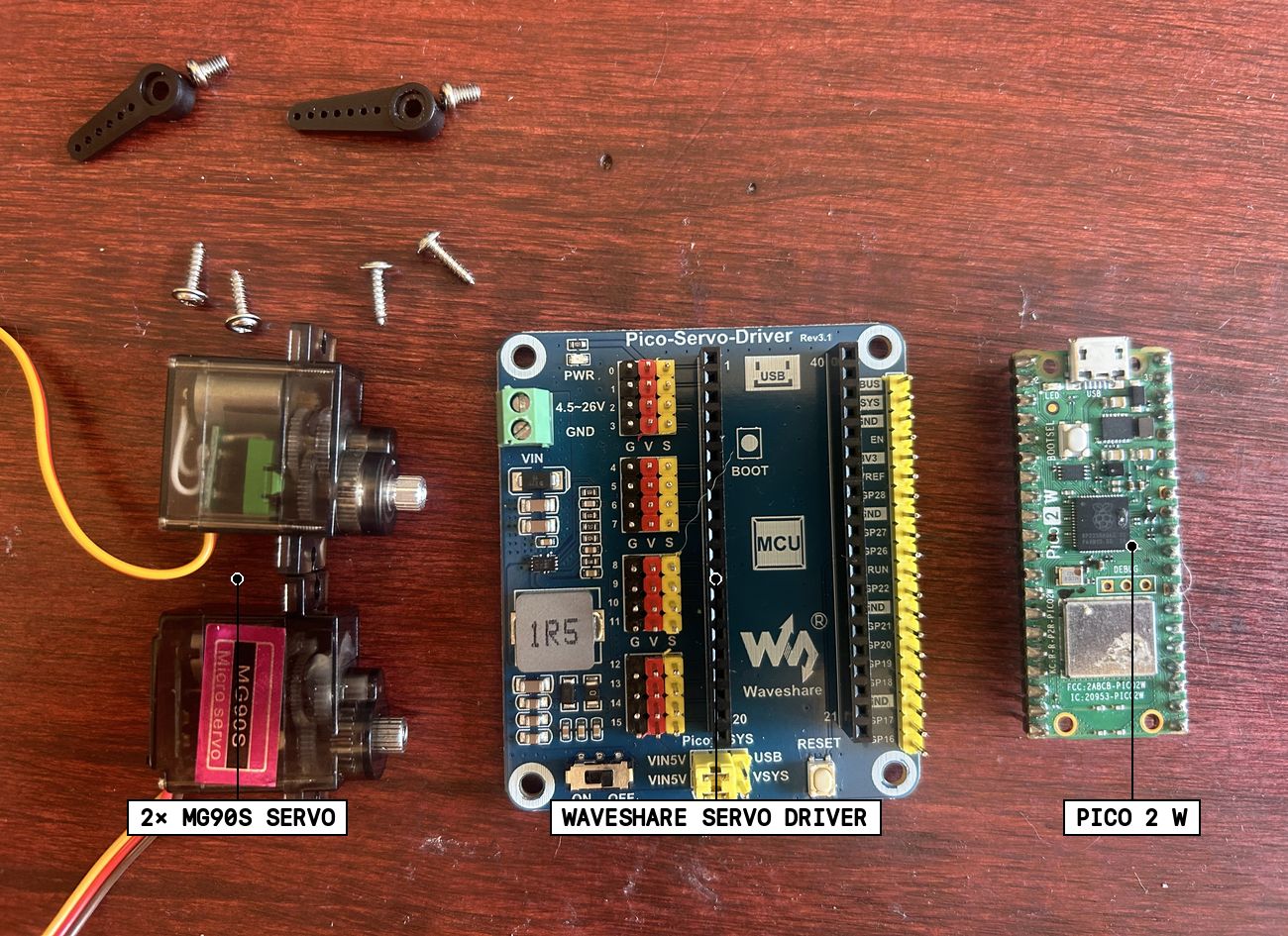
Raspberry Pi Pico 2 W with headers attached ×1 · Amazon
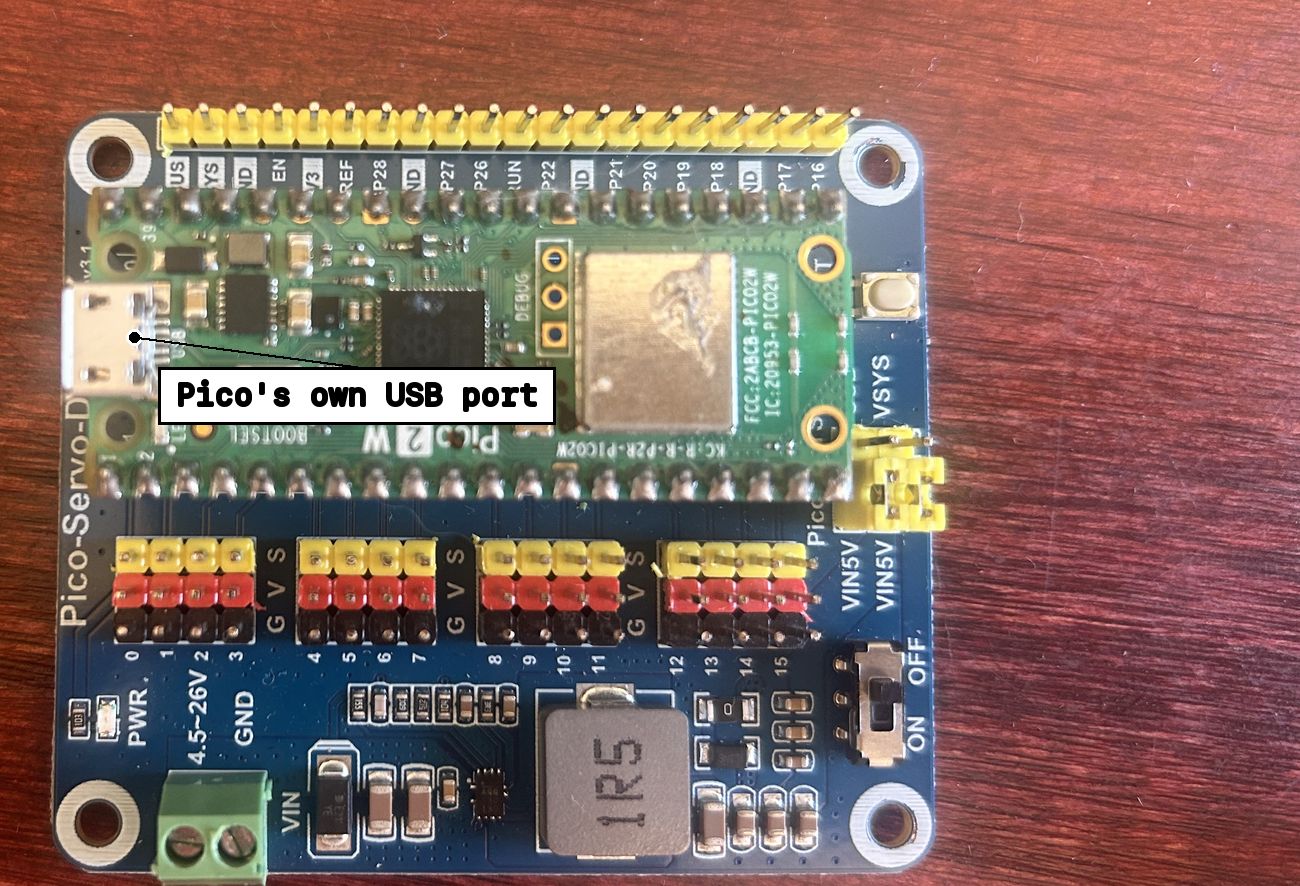
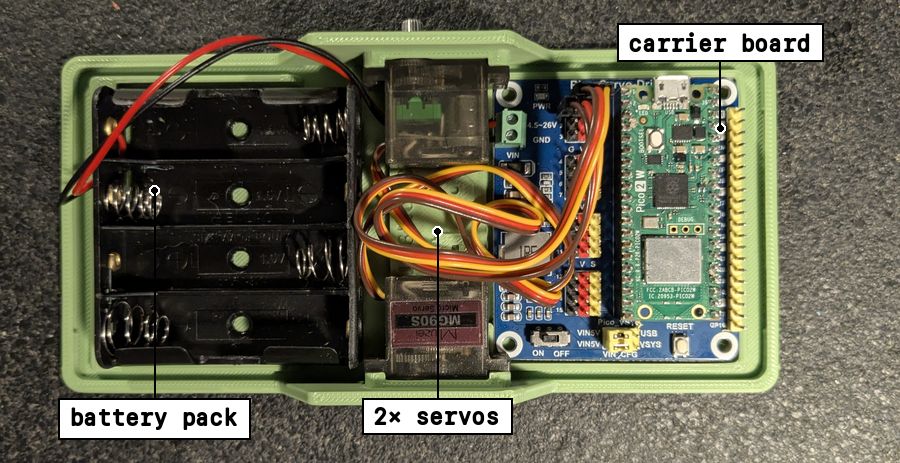
Waveshare Pico Servo Driver ×1 · Waveshare / Amazonwant to use another board?
The Kitronik Robotics Board (5329) is also tested; socket numbers and minimum voltage differ. The Kitronik Simply Robotics (5348) needs GPIO_PINS = {1: 15, 3: 13} in PicoRobotics.py (sockets 0 and 2). For ESP32, use the existing ESP32 build guide. This walkthrough shows Waveshare.
MG90S metal-gear micro servos ×2 · Amazon— this Miuzei pair fits; horns and screws included.
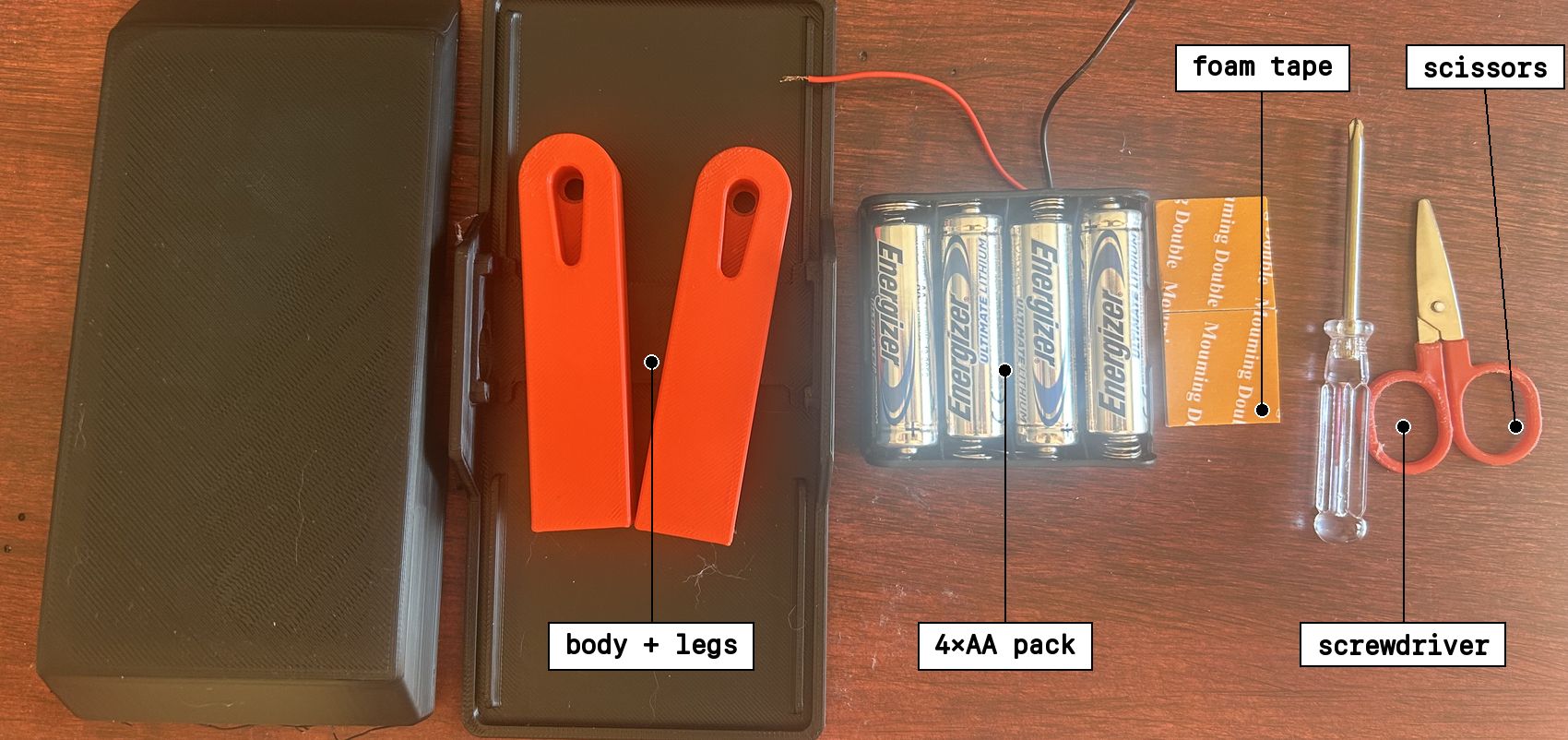
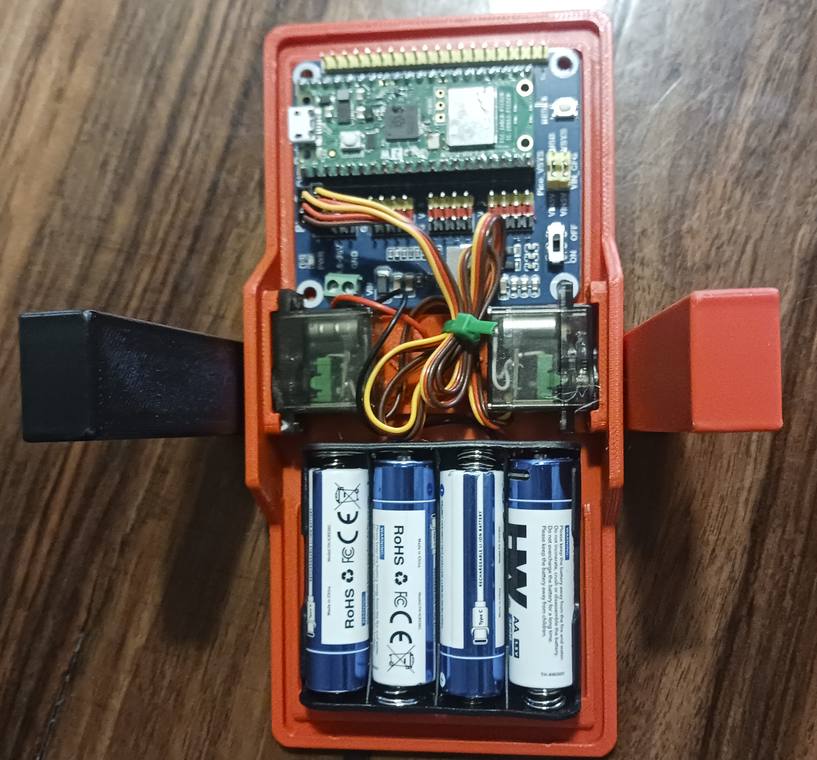
4× rechargeable lithium AA batteries · Amazon— tested rechargeable pack. Start fresh or fully charged. Fresh alkaline AAs work but do not last as long.
4×AA battery holder · Amazon Low-profile, no cover, exposed wire ends. Covered holders won’t fit.
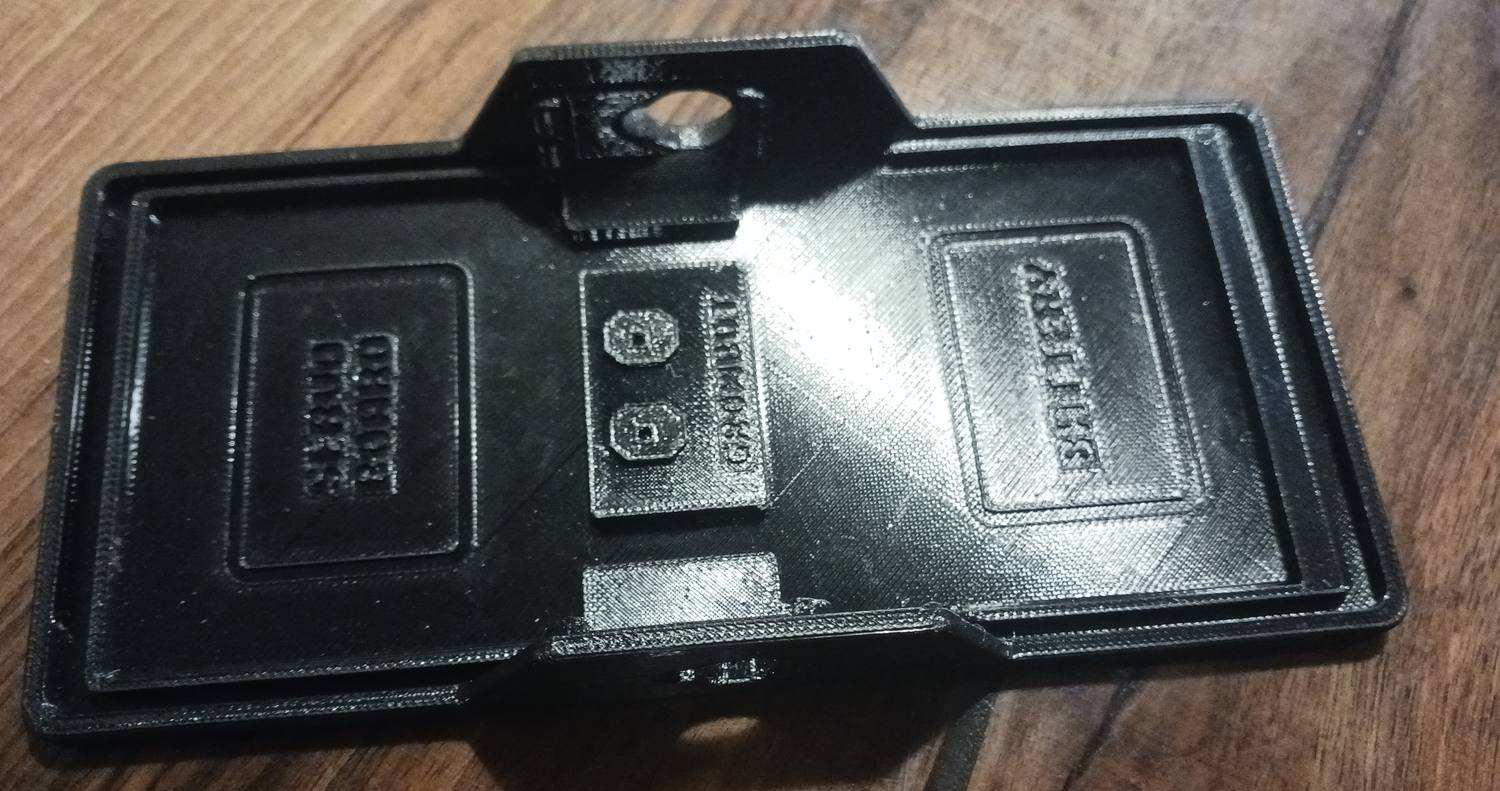
Double-sided foam tape
Small Phillips screwdriver (×) — servo screws
Tiny flat-head screwdriver — battery terminal
Battery holder: no cover, exposed wire ends.
You add
4× AA batteries: rechargeable lithium recommended (the pack we use). Fresh alkalines work but do not last as long.
Double-sided foam tape
Small Phillips screwdriver, for the servo screws
Tiny flat-head screwdriver, for the battery terminal
Trouble with this step?
Something is missing or broken. Email info@growbot.dev with a photo and your order number.
My Pico has no header pins. Get the version with headers already soldered on for this build.
Can I use SG90 servos? Use the linked MG90S pair; its metal gears and fit are tested here.
I have a different carrier board. Open “want to use another board?” above for the existing alternatives.
Click Connect, then select your Pico in the popup.
Look for → Board in FS mode
USB · not connected
Don’t see Board in FS mode?
The same Pico can be listed under another name:
Pico, Pico 2 W, or USB Serial
usbmodem… on a Mac, COM… on Windows
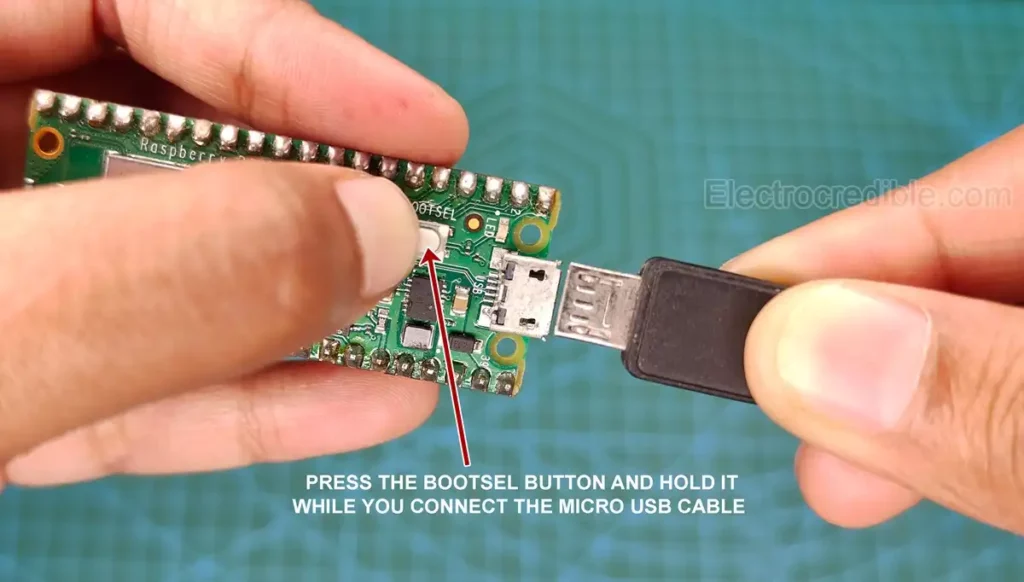
Picked the wrong one? Nothing is harmed. Press Connect again and choose a different entry. If the only entry never answers, close Thonny or any serial monitor, then redo 2A with BOOTSEL held.
Add GrowBot and Wi-Fi
No Wi-Fi typed: when you switch the robot on, it makes its own network, and your phone gives it Wi-Fi.
Not installed yet
GrowBot already installed?
Use the saved Wi-Fi.
Keep attached servos clear—they may move on restart.
The USB installer is unavailable here. Use Chrome or Edge on a computer, or follow the manual option below.
Manual option By hand, with Thonny
Install MicroPython in 2A first. Disconnect this page from the Pico, then open Thonny.
Connect: Run > Configure interpreter > MicroPython (Raspberry Pi Pico). Select the Pico’s serial port (usbmodem… / COM…, or auto-detect).
Download the body kit. Open each file from your computer, then File > Save As > Raspberry Pi Pico:
PicoRobotics.py → PicoRobotics.py
act_engine.py → act_engine.py
secrets.example.py → enter your Wi-Fi name and password, then save as secrets.py
relay_chip.py → main.py
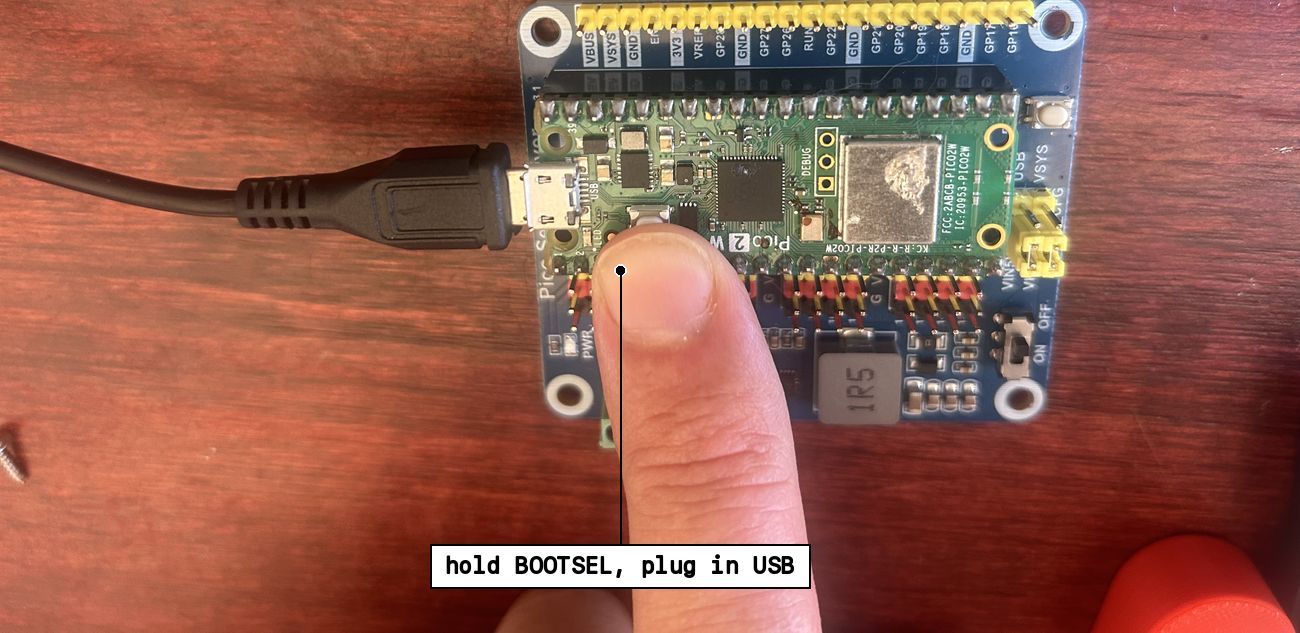
Restart the Pico and read its actual pairing code in the Shell. Keep USB connected for step 03.
This route skips travel Wi-Fi (the robot's own setup network for new places). The USB installer adds it.
Command-line alternative
With Python 3 installed, run pip install mpremote. In the extracted kit folder, copy secrets.example.py to secrets.py and enter your Wi-Fi details. Close Thonny and disconnect the browser first.
No Pico in the picker. Finish MicroPython installation in 2A, try a data-capable cable, and close Thonny or other USB tabs.
Connection not confirmed yet. Keep USB connected. Open “GrowBot already installed?” to restart and check, or copy diagnostics under Technical details.
Need to change Wi-Fi? Edit the network name and password, then use “Save Wi-Fi & install GrowBot”. This writes the credentials and GrowBot files again.
Network compatibility. Pico uses 2.4 GHz Wi-Fi. If your router has separate network names, use its 2.4 GHz name. A delayed or failed connection alone does not identify a password or band problem.
No pairing code appears. Open Technical details and copy diagnostics. If using Thonny, check its Shell.
Fresh alkalines work too. They just don’t last as long.
One tired battery causes most problems. Use four fresh or fully charged cells, all the same kind. A single weak cell is what makes servos twitch and the board restart later.
Leave the Waveshare switch OFF until step 05.
Trouble with this step?
A part feels loose. Check the foam tape under the board and holder, and the glue or screws holding each servo.
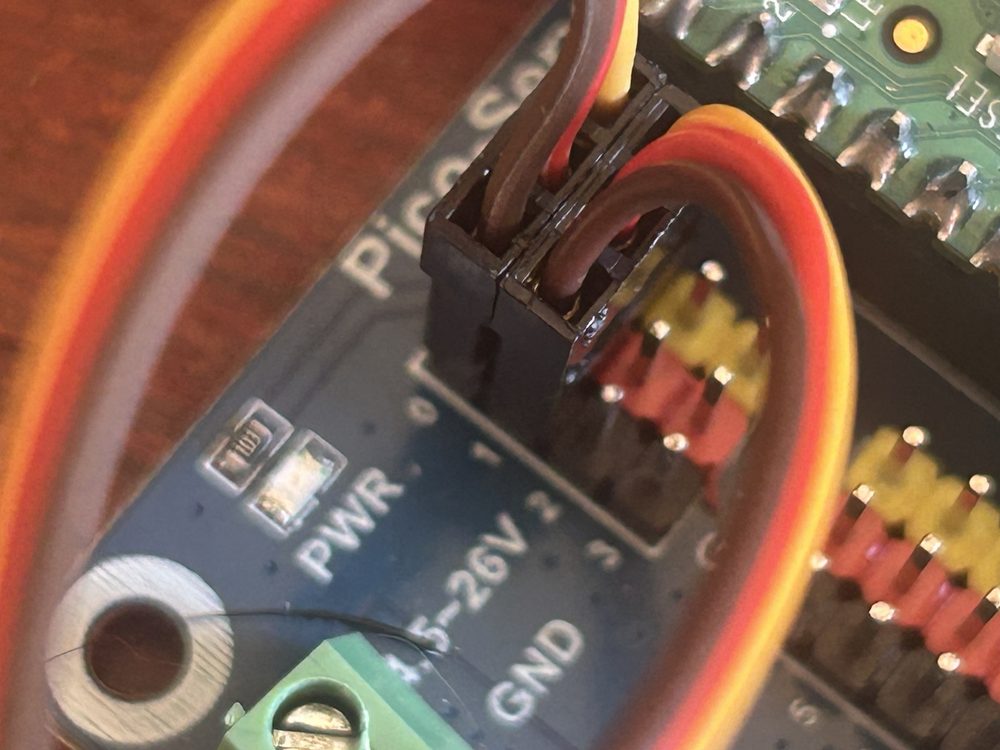
My servo wires are different colors. Match the board labels: G = brown/black, V = red, S = yellow/orange/white.
The plug colors don’t match the labels. Keep power off and turn the plug around. Check that all three pins are covered.
Switch the board on and both servos will run a short movement check. It ends with both parked straight, which is how the legs go on in the next step.
Before you switch on
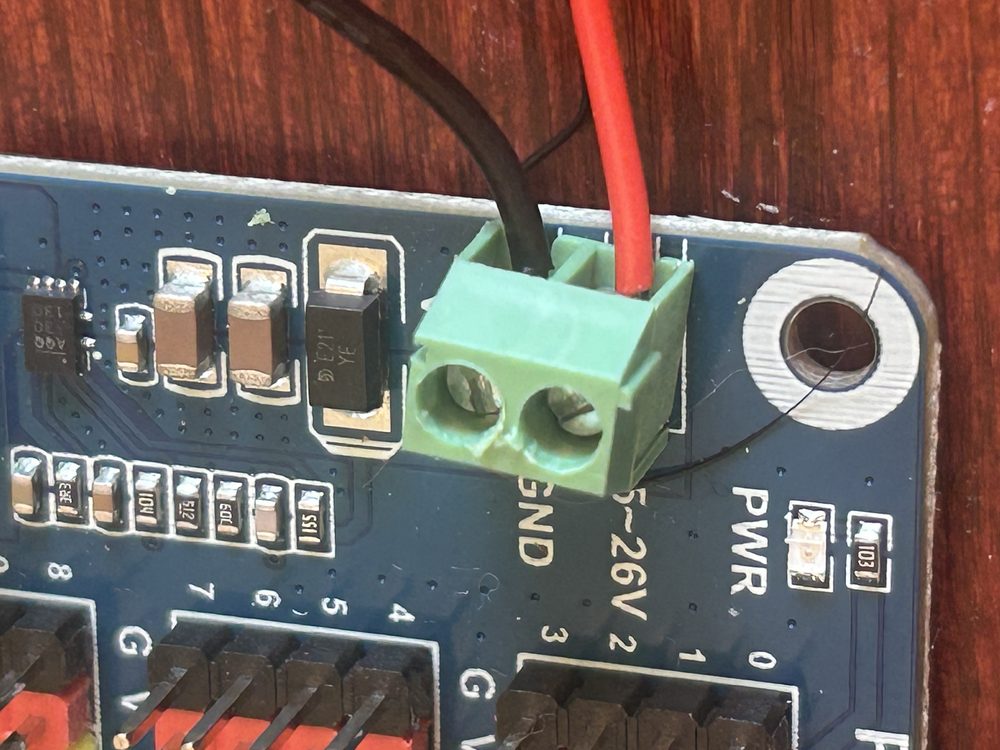
Be sure the USB cord is unplugged from the Pico. From here on the robot runs on its batteries.
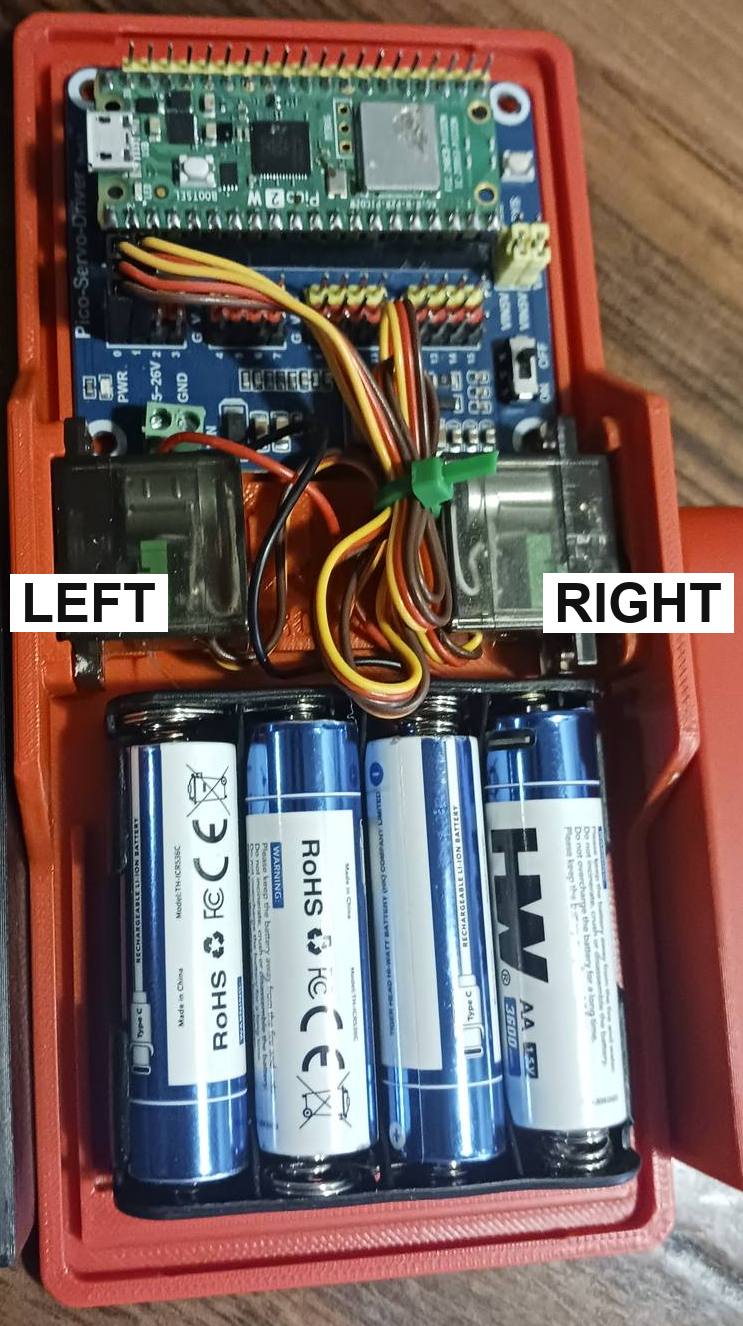
Look down at it with the batteries at the bottom.
in this orientation left and right reflect what GrowBot calls its own left and right leg
Switch the carrier board on. The movement check starts by itself.
A good movement check does this quickly:
both servos centre to 90° at the same moment
the right servo alone sweeps back and forth
the left servo alone sweeps back and forth
both sweep together
both settle at 90° and go quiet
Try it one more time to confirm.
Trouble with this step?
Nothing moves. Board switch on? Fresh batteries? Servos only ever move on battery, never on USB alone. On a carrier board other than the Waveshare or the Kitronik 5329, the driver may be talking to the wrong pins: see want to use another board? in the parts list.The kit’s Waveshare board needs no pin changes, so check that both battery wires are held tight in its screw terminal (4C).
Only one moves. Reseat the still one’s plug, and check it is in socket 0 or 1, no other socket does anything. Still dead? Swap the two servos between the sockets: if the fault moves with the servo it is the servo, if it stays put it is the socket.
They twitch and the board restarts. Weak power. Four fresh or fully charged AAs, or a 5-6 V supply that can give 2 A.
A servo buzzes hard or runs hot. Power off, check the plug isn’t shifted over by one pin.
It ran once and never again. The sequence only runs at power-on. Switch the board off, wait a second, switch it on.
Switch the robot off and on, then put its shell on: battery end first (it only fits that way), then press the other end down.
With the shell on, switch it off and on with a pencil tip through the side slot, or pop the shell off and on the same way.
Lay it face down, then tap This puts both servos at 90°.
Look at it from the side. Tap − or + until the near leg hides the far one and both point straight up.
Example of correct trim calibration
Left0°
Right0°
Trouble with this step?
It won’t connect. Is the robot on, on batteries? The code must match step 02.
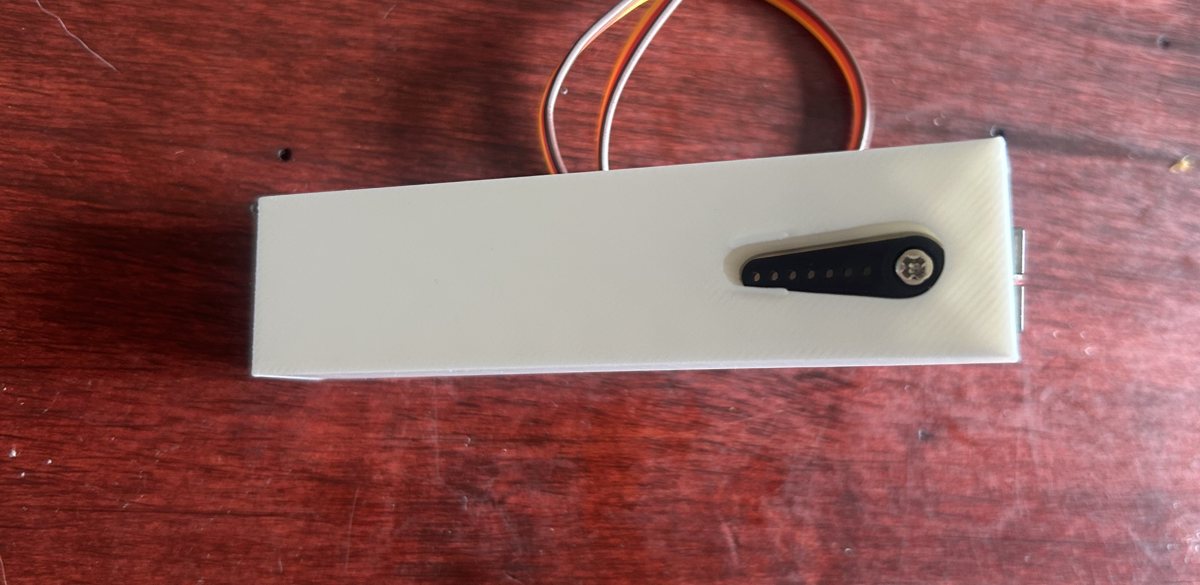
A leg runs out of taps. Its horn is a whole tooth off. Turn it one tooth on the shaft (step 06), then try again.
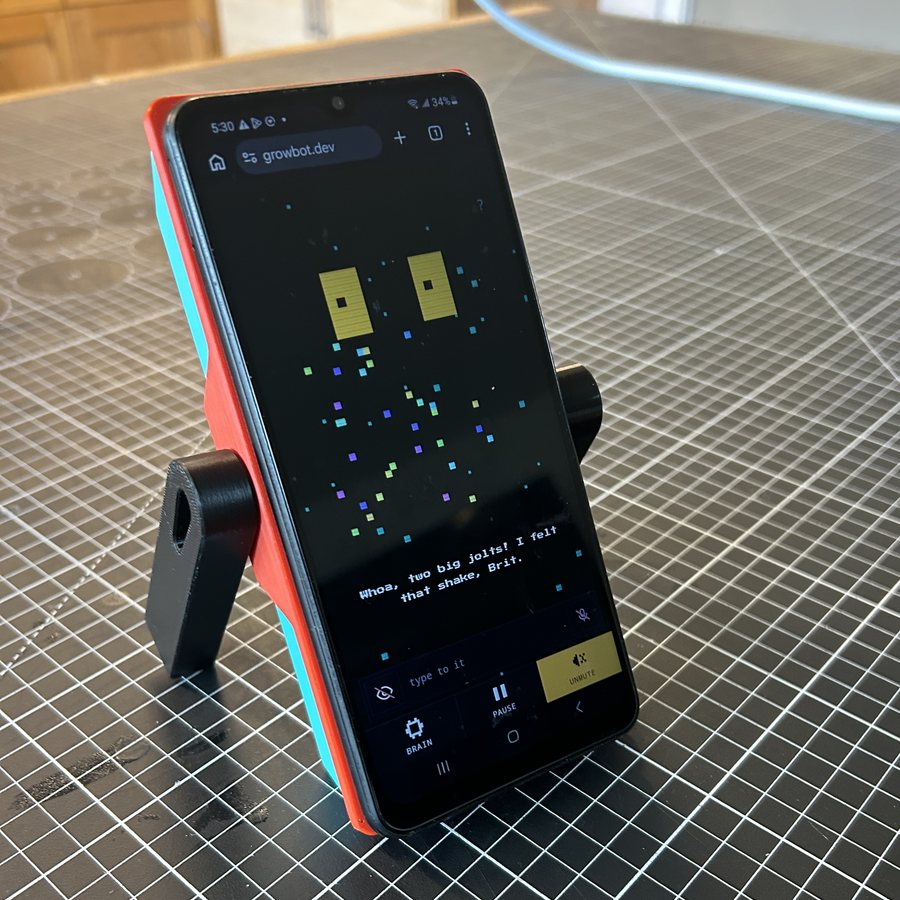
Secure your phone with an elastic band or foam tape. Screen facing out, camera at the top, away from the batteries.
Common mistake: mounting it upside down. Put a small sticker at the top of the shell so you always remember.
09Pair your phone
On the phone that will ride the robot, scan this. It pairs the robot, brings this robot’s saved trim along (the newer saved trim wins), and saves its Wi-Fi setup password from this install. That saved password is its robot passport. After that, just open growbot.dev on that phone; it remembers.
Your code fills in here once step 02 or 07 has your pairing code.
Each time you open GrowBot, it connects to its legs by itself.
Not standing up?
In GrowBot, open Settings and tap Pair.
Still nothing? Switch the robot off, wait 5 seconds, switch it on, wait 20 seconds after its wiggle, then reload growbot.dev.
The robot remembers up to 8 Wi-Fi networks. Somewhere new, open GrowBot Settings and tap robot somewhere new?. The phone needs the passport saved from this install; the page guides you to join the robot’s setup network and enter the new Wi-Fi password.
Legs look uneven? Redo step 07, save after checking the legs, then scan this code again.
Still off, or a leg turns the wrong way? Optional fine-tuning tools.
✓Checkpoints
you did
which proved
computer installer check passed
this browser can offer USB setup; Pico access is checked when you connect
pairing code printed
this board has an identity; Wi-Fi and server connection are checked separately
Pico online check passed
the relay reports that board online; movement is checked later
both servos moved
power + wiring + ports correct
legs on at 90°
both legs start straight, so the walk begins from a known shape
right leg first, then left
each command reaches the servo it names
legs line up, seen from the side
trim saved: both legs match, so the walk goes straight
body assembled
ready to wake
Anything on this list failing? Its step above has a "trouble with this step?" panel, and the 🤖 box at the top of the page knows this whole guide.
Special thanks to Jason Taylor for early contribution to this build.